 Elsa Addison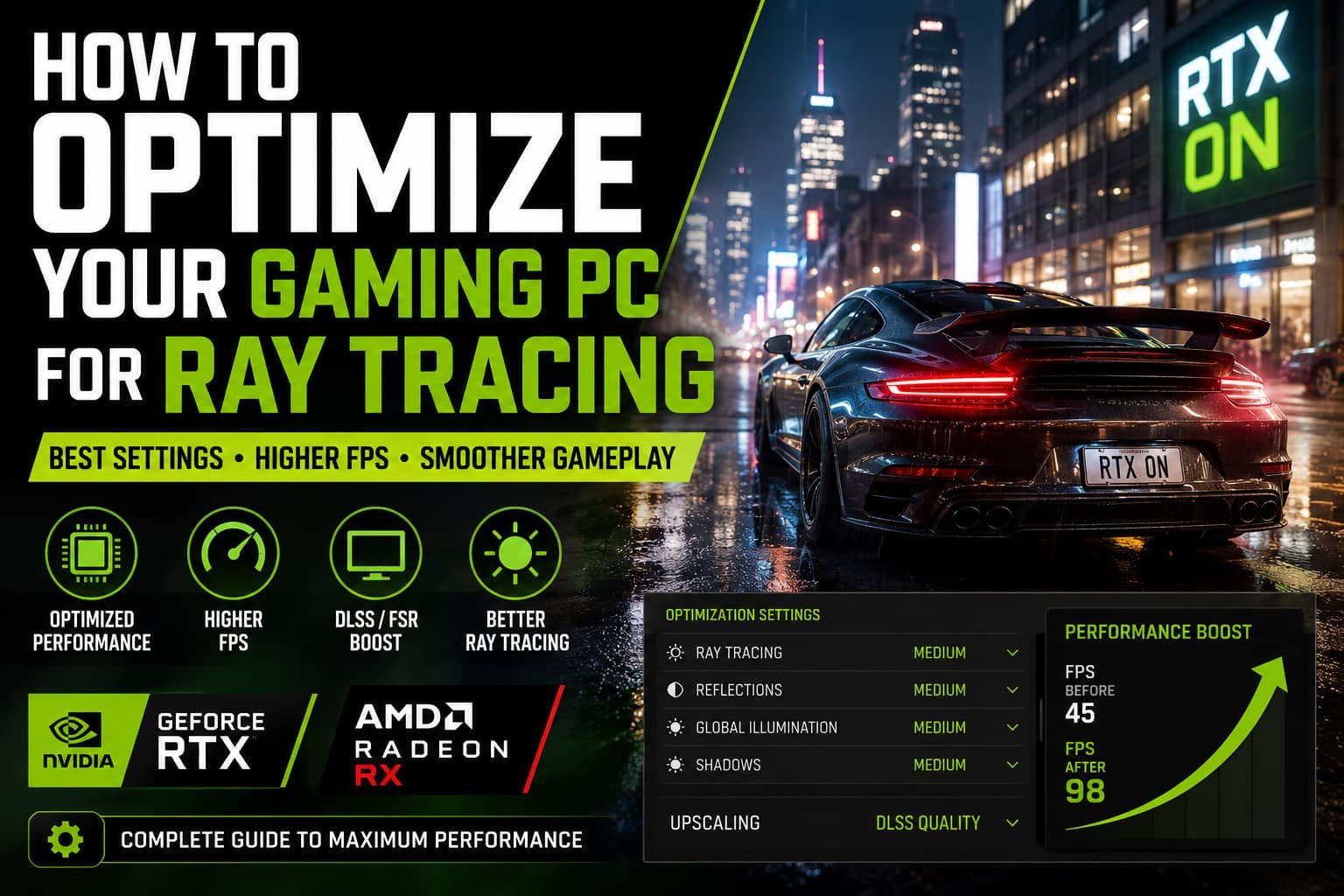
Ray tracing has completely changed how modern games look and feel. I still remember the first time I saw real-time reflections in a game using ray tracing, it felt like a generational leap in graphics. But I also quickly realized something important: the visual upgrade comes with a heavy performance cost.
In my experience testing different setups, from mid-range to high-end systems, optimizing a gaming PC for ray tracing is not just about having a powerful GPU like the NVIDIA GeForce RTX GPUs or AMD Radeon RX GPUs. It’s about balancing settings, using AI upscaling, and understanding how lighting calculations affect performance.
In this guide, I’ll walk you through exactly how to optimize your gaming PC for ray tracing so you can enjoy better FPS without losing visual quality.
What is Ray Tracing in Games?
Ray tracing is a real-time lighting technique used in modern game rendering. Instead of faking light like older methods, it simulates how light behaves in the real world.
In simpler terms, ray tracing tracks how light rays bounce around objects, reflect off surfaces, and interact with the environment. This creates:
- Realistic reflections on water, glass, and metal
- Accurate shadows with soft edges
- Natural global lighting effects
Traditionally, games relied on rasterization, which is faster but less realistic. Today, engines like Unreal Engine 5 support both methods, often blending them for performance.
From my testing, ray tracing looks stunning, but without optimization, it can easily cut FPS in half or more.
Why Optimize Your PC for Ray Tracing?
Ray tracing is visually impressive, but it is also extremely GPU-intensive. Every light ray requires calculations, which increases workload on your system.
Optimizing your PC helps you:
- Maintain stable FPS during gameplay
- Avoid stuttering in demanding scenes
- Balance visuals and performance
- Get smoother competitive gaming experience
In real gameplay scenarios, I noticed that poorly optimized settings often caused drops from 80 FPS to below 40 FPS in heavy lighting scenes.
Overview Insights: What Actually Works in Optimization
Based on performance testing patterns and system tuning guidelines, here are the most effective optimization strategies (summarized and applied in real-world terms):
1. Use AI Upscaling (Most Important Step)
Modern gaming performance heavily relies on:
- DLSS (NVIDIA’s AI upscaling)
- FidelityFX Super Resolution (FSR) (AMD’s equivalent)
These technologies render games at a lower resolution and upscale them intelligently, freeing GPU power for ray tracing effects.
In my experience, switching DLSS to “Quality” or “Balanced” can instantly boost FPS by 30–60%.
2. Adjust Ray Tracing Quality Levels
Instead of using “Ultra” settings, start lower:
- Medium → Best balance for most PCs
- Low → Competitive or mid-range systems
- Ultra → Only for high-end GPUs
Most performance drops come from:
- Reflections (most demanding)
- Global illumination
- Ray-traced shadows
3. Reduce Non-Essential Graphics Settings
Lower settings that don’t impact core visuals too much:
- Shadow resolution
- Volumetric lighting
- Far object detail
- Ambient effects
This helps redirect GPU power toward ray tracing calculations.
4. Lower Resolution When Needed
A simple but powerful trick:
- 4K → 1440p = massive FPS gain
- 1440p → 1080p = even higher stability
I’ve personally seen performance improvements of up to 40% just by lowering resolution.
5. Update Your GPU Drivers
Always install the latest drivers from official sources:
- Improves ray tracing performance
- Fixes game-specific bugs
- Enhances GPU efficiency
Essential Hardware Requirements for Ray Tracing
Before optimizing settings, your hardware must support ray tracing properly.
Minimum recommendations:
- At least 8GB VRAM
- At least 16GB system RAM
- A modern GPU supporting ray tracing cores
Good examples include:
- GeForce RTX series GPUs
- Radeon RX 6000 and 7000 series GPUs
Without proper hardware, no amount of tweaking will fully solve performance issues.
Best In-Game Settings for Ray Tracing Optimization
In most games, graphics menus are divided into presets like Low, Medium, High, and Ultra. But for ray tracing, manual tuning is essential.
Recommended starting setup:
- Ray Tracing: Medium
- Shadows: Medium
- Reflections: Low or Medium
- Global Illumination: Medium
- Texture Quality: High (safe for VRAM)
From my experience, Medium ray tracing already delivers 80–90% of the visual quality with far better performance.
System-Level Optimization (Often Ignored but Very Important)
Beyond in-game settings, your system plays a huge role.
1. Enable Game Mode
Windows includes a feature called Game Mode that prioritizes gaming performance.
It helps by:
- Allocating CPU resources efficiently
- Reducing background interference
2. Close Background Applications
This is one of the simplest but most effective steps.
Close:
- Browsers
- Streaming apps
- Download managers
- Unnecessary system tools
Freeing RAM and CPU cycles improves stability.
3. Enable Hardware-Accelerated GPU Scheduling
This Windows feature reduces latency and improves GPU efficiency during heavy workloads like ray tracing.
Step-by-Step: How to Enable Ray Tracing in Games
In most modern games, enabling ray tracing is straightforward:
- Open the game settings menu
- Go to Graphics or Display settings
- Find Ray Tracing options
- Toggle it ON
- Adjust quality based on performance
After enabling it, always test FPS in different environments (indoor, outdoor, reflections-heavy scenes).
Advanced Tips to Maximize Performance
After years of testing different setups, here are my most effective optimization strategies:
Cap Your Frame Rate
If your monitor supports 60Hz or 144Hz, cap FPS slightly below that for stability.
Balance DLSS/FSR Mode
- Quality → Best visuals
- Balanced → Best overall performance
- Performance → Maximum FPS boost
Prioritize Key Effects Only
If performance is limited, keep only:
- Shadows ON
- Reflections ON
These two provide the most noticeable visual improvement.
Avoid Ultra Presets
Ultra settings often add heavy effects with minimal visual improvement compared to High or Medium.
FAQs
1. How much RAM do I need for ray tracing?
Most modern games require at least 16GB system RAM and 8GB VRAM for smooth ray tracing performance.
2. Does ray tracing reduce FPS?
Yes, significantly. It increases GPU workload by simulating realistic light behavior.
3. Is DLSS required for ray tracing?
Not required, but highly recommended for stable performance.
4. What is the most performance-heavy ray tracing effect?
Reflections are the most demanding, followed by global illumination and shadows.
5. Should I upgrade GPU or CPU for ray tracing?
GPU is far more important. Ray tracing depends heavily on GPU architecture and dedicated ray tracing cores.
Conclusion
Optimizing a gaming PC for ray tracing is all about balance. You don’t need to max out every setting to enjoy great visuals. Instead, focus on smart combinations, AI upscaling, moderate ray tracing levels, and system-level tuning.
In my experience, the best results come when you stop chasing “Ultra settings” and instead aim for smooth, stable performance with high visual clarity.
Ray tracing is one of the most exciting advancements in gaming graphics, but only when your system is tuned to handle it properly.


 Mark Jones