 Elsa Addison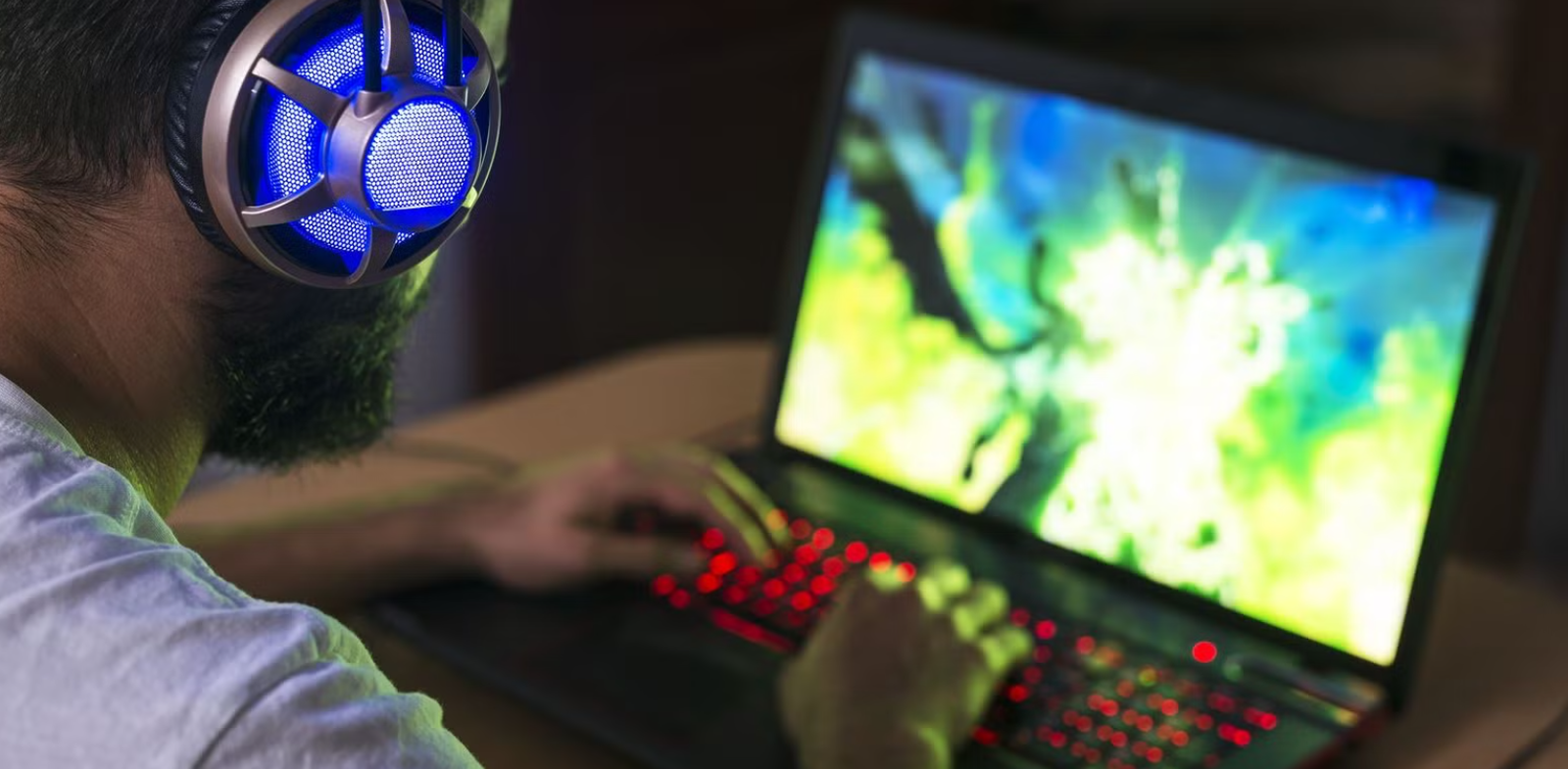
Gaming laptops have become incredibly powerful over the last few years, but even the best machines can start feeling slow after months of regular use. I learned this firsthand when my gaming laptop, which once handled every game effortlessly, began struggling with frame drops, overheating, and painfully long loading times.
At first, I assumed the hardware was getting outdated. I even started looking at expensive upgrades and new gaming laptops. But after spending several weeks researching performance optimization techniques and testing different settings myself, I realized that many performance issues had simple solutions.
By making a series of small but effective changes, I managed to improve my average frame rates, reduce system temperatures, and eliminate annoying stutters in several popular games—all without replacing my laptop.
If you’ve noticed your gaming laptop isn’t performing like it used to, don’t worry. In this guide, I’ll share practical methods that actually work, explain why they matter, and help you get the most out of your hardware.
Why Gaming Laptop Performance Drops Over Time
Before optimizing your laptop, it’s important to understand why performance decreases.
Gaming laptops operate in compact spaces where heat, dust, and software clutter gradually become major problems.
Some of the most common causes include:
- Too many background applications
- Outdated graphics drivers
- Dust blocking cooling vents
- Thermal throttling
- Low storage space
- Old Windows installations
- Incorrect power settings
- Excessive startup programs
In my experience, no single issue was responsible. Instead, several small problems combined to reduce overall performance.
See More: What Are the Hardest Sports?
Check Your Laptop’s Current Performance First
Before making changes, establish a baseline.
I recommend monitoring:
- Average FPS
- CPU usage
- GPU usage
- RAM usage
- Temperature
- Disk usage
Useful monitoring tools include:
- MSI Afterburner
- RivaTuner Statistics Server
- HWiNFO
- CPU-Z
- GPU-Z
- Windows Task Manager
These tools help identify whether the CPU, GPU, memory, or storage is limiting your gaming performance.
Update Your Graphics Drivers
One of the easiest improvements comes from installing the latest graphics drivers.
Both NVIDIA and AMD regularly release drivers optimized for newly launched games.
I was skeptical at first, but after updating my NVIDIA GeForce driver before playing a newly released title, I noticed smoother gameplay and fewer graphical glitches almost immediately.
Driver updates often include:
- FPS improvements
- Bug fixes
- Better game compatibility
- Lower latency
- Improved stability
Always download drivers directly from your GPU manufacturer’s official software.
Enable High Performance Power Mode
Many laptops ship with balanced power settings to conserve battery life.
While that’s helpful for everyday work, it limits gaming performance.
Switch your laptop to:
- High Performance
- Ultimate Performance (if available)
- Manufacturer Gaming Mode
Brands like ASUS ROG, Lenovo Legion, MSI, Acer Predator, HP Omen, and Alienware usually include dedicated performance software that lets you switch between silent, balanced, and turbo modes.
This simple adjustment can noticeably improve CPU and GPU performance during gaming.
Close Background Programs
One thing that surprised me was how many unnecessary applications were running silently in the background.
Programs such as:
- Discord overlays
- Web browsers
- RGB software
- Cloud sync apps
- Game launchers
- Updaters
all consume valuable RAM and CPU resources.
Before launching a game:
- Close unused applications.
- Disable unnecessary startup programs.
- Restart your laptop if it has been running for several days.
This frees up system resources for gaming.
Clean Your Cooling System
Heat is one of the biggest enemies of gaming laptops.
When temperatures rise too high, your CPU and GPU automatically reduce their speeds to protect themselves. This process is called thermal throttling.
I experienced this while playing Cyberpunk 2077. After about 30 minutes, my frame rate would suddenly drop. Cleaning the cooling vents and fans made a noticeable difference, lowering temperatures by several degrees and restoring consistent performance.
You can improve cooling by:
- Cleaning air vents
- Removing dust from fans
- Using compressed air
- Keeping ventilation unobstructed
If you’re comfortable opening your laptop, a deeper internal cleaning every 6–12 months can help maintain peak performance.
Use a Cooling Pad
Cooling pads aren’t miracle devices, but they can help.
A quality cooling pad improves airflow underneath your laptop, especially if the intake vents are located on the bottom.
Benefits include:
- Lower temperatures
- Reduced thermal throttling
- More stable frame rates
- Improved comfort during long gaming sessions
Even a temperature drop of 3–5°C can make a noticeable difference in sustained performance.
Upgrade Your RAM
Modern games consume far more memory than older titles.
If your laptop has:
- 8GB RAM
consider upgrading to:
- 16GB RAM
or even:
- 32GB RAM
depending on your gaming and multitasking needs.
In my own testing, upgrading from 8GB to 16GB significantly reduced stuttering in games while allowing me to keep Discord and a web browser open without affecting gameplay.
Replace an HDD with an SSD
If your gaming laptop still uses a traditional hard drive, upgrading to an SSD is one of the biggest improvements you can make.
Benefits include:
- Faster boot times
- Shorter loading screens
- Quicker game installations
- Faster Windows performance
- Reduced texture loading delays
An NVMe SSD offers even greater speed compared to a standard SATA SSD if your laptop supports it.
Free Up Storage Space
Storage performance drops when drives become nearly full.
Try to keep at least 15–20% of your storage free.
Delete:
- Old games
- Duplicate files
- Temporary files
- Downloads
- Unused applications
Windows Disk Cleanup and Storage Sense make this process easy.
Optimize In-Game Graphics Settings
Many gamers assume every setting should be pushed to Ultra.
In reality, a few adjustments can dramatically increase FPS without noticeably affecting visual quality.
I usually lower:
- Shadows
- Ambient Occlusion
- Motion Blur
- Ray Tracing (if necessary)
- Volumetric Effects
while keeping textures relatively high.
This combination often provides the best balance between image quality and performance.
Enable DLSS, FSR, or XeSS
Modern upscaling technologies are game changers.
Examples include:
- NVIDIA DLSS
- AMD FSR
- Intel XeSS
These technologies render games at a lower internal resolution and intelligently upscale the image.
The result is:
- Higher FPS
- Minimal image quality loss
- Better performance at higher resolutions
Many newer AAA games now support at least one of these technologies.
Keep Windows Updated
Windows updates often improve:
- Gaming performance
- Hardware compatibility
- Security
- Driver support
However, I recommend avoiding major updates immediately after release if you rely on your laptop daily. Waiting a week or two allows Microsoft to address any early bugs.
Disable Unnecessary Startup Programs
Over time, software automatically adds itself to startup.
This slows boot times and consumes memory before you even launch a game.
Open Task Manager and review your startup list.
Disable anything you don’t truly need.
My laptop’s startup time improved noticeably after removing several unnecessary applications.
Scan for Malware
Unexpected slowdowns can sometimes be caused by malware or unwanted software.
Run regular scans using:
- Windows Security
- Malwarebytes
Keeping your system clean helps ensure your CPU and storage aren’t being used by hidden background processes.
Consider Repasting the CPU and GPU
If your laptop is several years old and consistently overheating despite cleaning, the thermal paste may have dried out.
Replacing thermal paste can lower temperatures and improve sustained performance.
This process requires technical skill, so beginners may prefer having it done by a professional technician.
Avoid Overclocking Unless Necessary
While overclocking can increase performance, gaming laptops have limited cooling capacity.
In my experience, stable temperatures provide a much better gaming experience than squeezing out a few extra frames per second.
For most users, proper optimization delivers better long-term results than aggressive overclocking.
Common Gaming Laptop Performance Mistakes
Avoid these common errors:
- Installing unnecessary optimization software
- Running multiple antivirus programs
- Ignoring driver updates
- Blocking air vents while gaming
- Playing on battery power
- Filling storage completely
- Skipping Windows maintenance
Small habits like these can gradually reduce your laptop’s performance.
My Biggest Performance Improvements
After applying these optimizations, I noticed improvements in several games.
The biggest gains came from:
- Cleaning the cooling system
- Upgrading RAM
- Installing an NVMe SSD
- Updating GPU drivers
- Adjusting graphics settings
- Closing unnecessary background applications
None of these changes required replacing my laptop, yet together they made gaming feel much smoother and more enjoyable.
Quick Performance Checklist
Before every gaming session:
- Plug in your charger.
- Switch to High Performance mode.
- Close unnecessary apps.
- Check for driver updates.
- Ensure cooling vents are clear.
- Launch your game after a fresh restart if needed.
- Monitor temperatures during long sessions.
Following this routine consistently helps maintain stable performance.
Frequently Asked Questions
1. Does adding more RAM improve gaming performance?
Yes, especially if your laptop currently has 8GB or less. Upgrading to 16GB can reduce stuttering, improve multitasking, and provide a smoother gaming experience in modern titles.
2. Why does my gaming laptop get slower after 30 minutes?
This is often caused by thermal throttling. As temperatures rise, the CPU and GPU automatically reduce their speeds to prevent overheating. Cleaning the cooling system, improving airflow, or using a cooling pad can help.
3. Should I keep my gaming laptop plugged in while gaming?
Yes. Most gaming laptops deliver maximum CPU and GPU performance only when connected to AC power. Running demanding games on battery usually reduces performance to extend battery life.
Final Thoughts
Improving your gaming laptop’s performance doesn’t always require expensive upgrades or buying a brand-new machine. In my experience, the most noticeable gains came from addressing the basics: keeping drivers updated, managing heat, upgrading key components like RAM or storage when possible, and optimizing both Windows and in-game settings.
The key takeaway is that consistent maintenance matters just as much as powerful hardware. A clean, well-optimized laptop will almost always outperform a neglected one with similar specifications.
Start with the simple changes outlined in this guide, measure the results, and build from there. Even small improvements can add up to smoother gameplay, faster loading times, and a more enjoyable gaming experience. With the right approach, you can extend the life of your gaming laptop and get the performance you paid for.


 Mark Jones