 Elsa Addison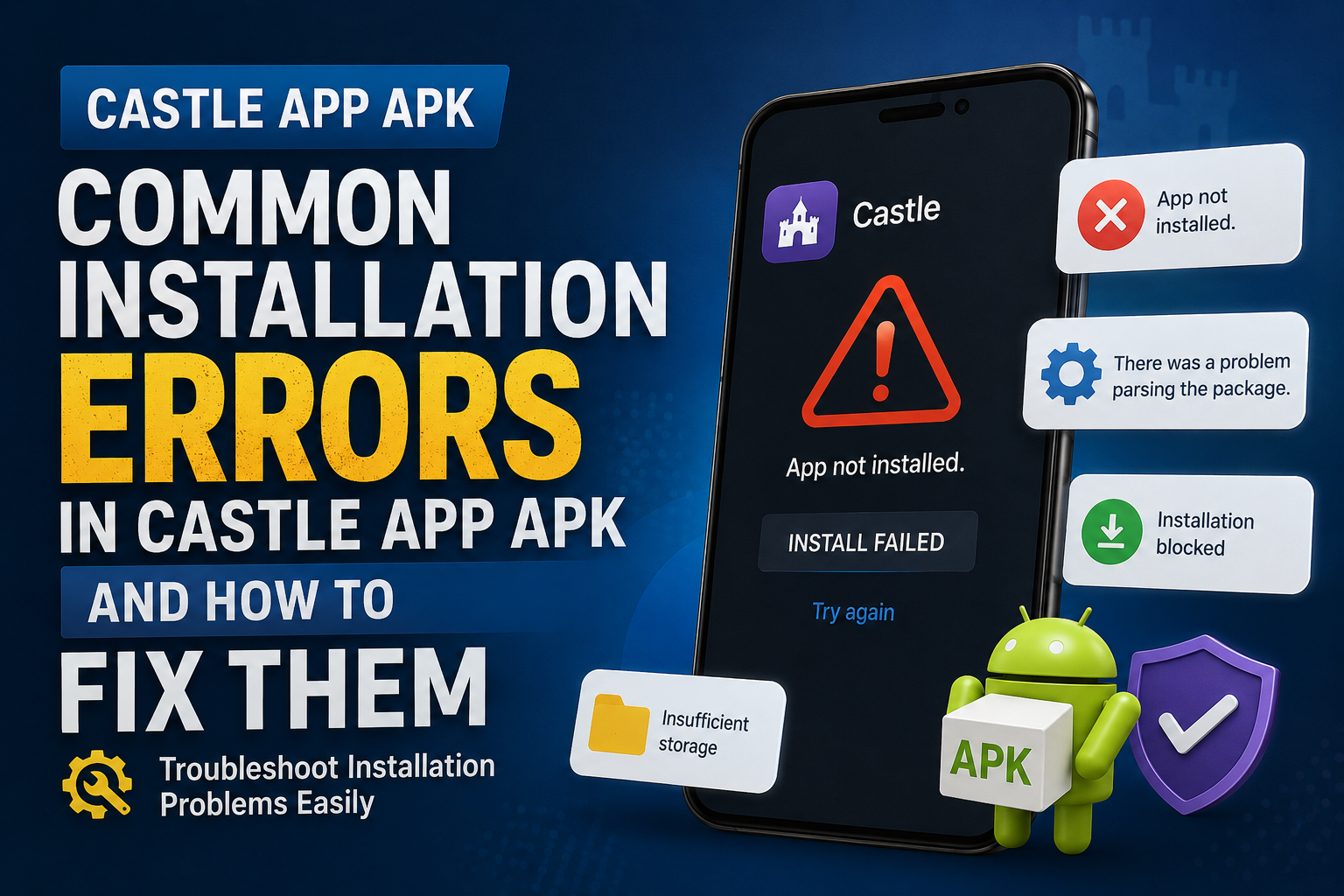
Installing an Android APK can sometimes feel much harder than it should be. You download the file, tap it, and expect the app to install, but instead, Android may show messages such as “App not installed,” “There was a problem parsing the package,” or “Installation blocked.”
If you are trying to install the Castle App APK, these errors can be frustrating, especially when you are not sure whether the problem is with the APK file, your phone, Android settings, or an older version of the application.
In my experience researching Android APK installation problems, most failed installations are caused by a small number of common issues. The good news is that many of them can be fixed without complicated technical knowledge.
In this guide, I’ll explain the most common Castle App APK installation errors, what causes them, and the practical steps you can take to troubleshoot them. I’ll also cover compatibility problems, storage issues, permissions, corrupted downloads, and conflicts with previous versions.
Safety note: APK files should come from a trustworthy source. Avoid modified, cracked, or suspicious APKs, and scan downloaded files when possible. Never disable Android’s security protections simply to force an installation.
What Is an APK Installation Error?
An APK, or Android Package Kit, is the file format Android uses to install applications outside the Google Play Store.
When you install an APK, Android checks several things before allowing the application to be installed. These checks can include:
- Whether the APK is compatible with your Android version
- Whether the package is properly formatted
- Whether the file is complete and undamaged
- Whether another version of the app is already installed
- Whether you have enough storage space
- Whether Android allows installation from the source you used
If one of these checks fails, the installation may stop.
That’s why the first step should not be repeatedly downloading random APK files. Instead, identify the actual reason for the failure.
1. “App Not Installed” Error
One of the most common messages Android users encounter is simply:
“App not installed.”
Unfortunately, this message does not always tell you exactly what went wrong.
Several different problems can cause it.
Possible causes
The APK may be incompatible with your device, there may be an existing version of the same application, or the downloaded file may be corrupted.
Low storage can also cause installation problems.
How I would troubleshoot it
Start with these steps:
- Check how much free storage is available.
- Delete the APK and download it again from a trusted source.
- Check whether an older Castle App version is already installed.
- If an older version exists, consider uninstalling it first.
- Restart your phone.
- Try the installation again.
Don’t immediately assume that the APK itself is broken. Device compatibility is often the real problem.
2. “There Was a Problem Parsing the Package”
Another familiar Android error is:
“There was a problem parsing the package.”
This usually means Android could not properly read or process the APK package.
Why does this happen?
Common reasons include:
- The APK download was incomplete.
- The file became corrupted.
- The APK requires a newer Android version.
- The APK isn’t compatible with your device architecture.
- The file isn’t actually a valid APK despite having an
.apkextension.
A practical solution
First, delete the existing file and download it again.
Make sure the download finishes completely before opening it. If your internet connection drops during the download, the resulting file may not work correctly.
You should also check the application’s stated Android requirements before installing.
If your phone is running an older Android version, the APK may simply not support it.
3. Installation Blocked by Android
Sometimes Android prevents the APK from being installed because the file comes from outside the Play Store.
This is a security feature rather than necessarily an indication that the APK is broken.
Depending on your Android version and device manufacturer, you may see a message indicating that installation from an unknown or untrusted source is blocked.
What should you do?
Instead of changing security settings everywhere, check which application is trying to install the APK.
For example, if you downloaded the file through a browser, Android may ask you to allow that browser to install unknown apps.
Only enable the relevant permission if you trust the source and understand the risk.
After installing the APK, you can review your settings and disable unnecessary installation permissions again.
4. An Older Castle App Version Is Already Installed
Another issue can occur when you already have a version of the application installed.
Android may reject a new APK if its package signature doesn’t match the currently installed version.
This can happen when users attempt to install a different release over an existing installation.
What can you do?
Before removing an older version, think about your app data.
If the existing application contains important settings or information, check whether that information is backed up.
Then:
- Open your Android settings.
- Go to Apps.
- Find the existing Castle App installation.
- Check its version information.
- If appropriate, uninstall the old version.
- Restart the phone if necessary.
- Install the new APK.
This is particularly important when experimenting with Castle App Old Versions.
Older releases can sometimes behave differently from newer ones, and compatibility isn’t guaranteed across every Android device.
5. Insufficient Storage Space
You might think, “The APK is only a few megabytes, so why can’t I install it?”
Android may require additional temporary space during installation.
For example, an APK could be relatively small while the installed application requires considerably more storage.
Quick fix
Check your available storage under Android’s storage settings.
If space is low, consider removing:
- Unused applications
- Large videos
- Duplicate photos
- Old downloads
- Temporary files
- Files you no longer need
Then restart the installation.
In my experience, freeing even a modest amount of space can resolve installation problems that initially look mysterious.
6. The APK File Is Corrupted
A corrupted APK is another common reason for installation failure.
This can happen because of an interrupted download, an unreliable hosting source, or an incomplete file transfer.
Signs of a damaged APK
You may notice:
- Parsing errors
- Installation stopping unexpectedly
- An unusually small file size
- The file refusing to open
- Different devices reporting similar errors
Best approach
Delete the problematic APK instead of repeatedly trying to install it.
Then download a fresh copy from a reputable source.
Avoid websites that force you through suspicious redirects or offer APKs that have been modified without clearly explaining what has changed.
7. Android Version Compatibility Problems
Not every APK works on every Android phone.
An application may require a particular Android API level or specific system features.
For example, an APK designed for a newer Android environment may not install properly on an older device.
How to check compatibility
Before downloading an APK, look for information about:
- Minimum Android version
- Supported device architecture
- Application version
- File type
- Developer information
If your Android version is significantly older than the version required by the application, changing a random setting usually won’t solve the problem.
The better solution is to find a compatible release.
8. CPU Architecture Mismatch
This is a slightly more technical issue, but it can matter.
Android devices commonly use architectures such as ARM-based configurations, while some applications may provide different APK builds for different architectures.
If you download an incompatible build, installation or app startup can fail.
What should beginners do?
Don’t download multiple random APK variants and install them one by one.
Instead, identify your device’s supported architecture using reliable device information and choose the appropriate official or trusted build.
If the developer provides a universal APK, that may be simpler because it is designed to support multiple architectures.
9. Google Play Protect or Device Security Warning
Android security tools may warn you about applications installed outside the Play Store.
This warning should not automatically be ignored.
An APK downloaded from an unknown source can potentially contain malicious software.
Before proceeding, consider:
- Where did the APK come from?
- Is the developer identifiable?
- Does the source provide trustworthy information?
- Has the file been modified?
- Does the application request unusual permissions?
If you cannot answer these questions confidently, it is better not to install the file.
Never disable important security protections just because an APK refuses to install.
10. The Downloaded File Isn’t Actually a Standard APK
Sometimes people download a file expecting a normal APK but receive a different package format.
For example, some applications may be distributed using split APKs or other installation formats.
If your phone expects one type of package and you’ve downloaded another, simply tapping the file may not work.
What I recommend
Check the file extension and installation instructions provided by the legitimate application source.
Don’t rename files randomly from one extension to another. Changing the name does not convert the underlying package format.
11. Castle App Opens but Immediately Crashes
Installation isn’t always the end of the problem.
Sometimes the APK installs successfully but crashes immediately after opening.
This can indicate a compatibility issue rather than an installation issue.
Try:
- Restarting your phone.
- Checking for available Android updates.
- Checking the app’s required Android version.
- Clearing the application’s cache.
- Reinstalling a trusted compatible version.
If an older version works while a newer release crashes, the newer release may not be fully compatible with your particular device.
12. Don’t Forget to Check Your Internet Connection
Although internet access isn’t always necessary after an APK has been downloaded, it matters during the download process.
A poor connection can produce incomplete or corrupted files.
If your connection is unstable:
- Wait for a stronger connection.
- Avoid interrupting the download.
- Don’t repeatedly pause and resume the same questionable file.
- Verify that the download has completed successfully.
A fresh download is often much better than trying to repair a damaged APK.
My Step-by-Step Troubleshooting Method
If I were troubleshooting a Castle App APK installation problem from scratch, I would follow this order rather than changing random settings.
Step 1: Check the APK source
Make sure the file came from a trustworthy source.
Step 2: Check Android compatibility
Confirm that your Android version meets the application’s requirements.
Step 3: Check storage
Make sure your phone has enough free space.
Step 4: Check for an existing version
Look for an older installation that could conflict with the new package.
Step 5: Download a fresh file
If the APK may be corrupted, delete it and download it again.
Step 6: Review installation permissions
If Android blocks the installation, check the relevant “install unknown apps” permission for the application being used to open the APK.
Step 7: Restart the device
A simple restart can clear temporary system problems.
Step 8: Try again
Install the fresh, compatible APK.
If it still doesn’t work, the issue is more likely to involve package compatibility, architecture, signing, or the APK itself.
Should You Use Castle App Old Versions?
Older versions can sometimes be useful when a newer release introduces compatibility problems or changes that don’t work well on a particular device.
However, old versions also have disadvantages.
They may:
- Lack security updates
- Contain bugs that were fixed later
- Stop working with newer Android versions
- Have compatibility problems with newer services
- Come from unreliable third-party archives
So, I wouldn’t automatically recommend an older version simply because the latest version doesn’t install.
First determine why the current version is failing.
If an older version is genuinely needed, use a reputable archive or official source whenever possible, and verify the file before installation.
Common Mistakes to Avoid
When troubleshooting APK installation problems, avoid these common mistakes:
- Downloading APKs from several suspicious websites.
- Installing modified or “cracked” versions.
- Ignoring Android security warnings.
- Disabling security features permanently.
- Installing random APK variants without checking compatibility.
- Keeping multiple conflicting versions installed.
- Ignoring available storage.
- Assuming every installation error has the same solution.
The goal isn’t simply to make the APK install. The goal is to install a legitimate, compatible, and safe application.
Final Thoughts
Castle App APK installation problems can look complicated, but most of them have a logical cause. A corrupted download, insufficient storage, Android compatibility, an existing application version, installation permissions, or package conflicts can all prevent an APK from installing correctly.
In my experience, the best approach is to troubleshoot systematically instead of changing several settings at once. Start with the APK source, check your Android version and storage, look for an existing installation, and download a fresh compatible file if necessary.
Most importantly, don’t sacrifice device security just to get an APK installed. A successful installation isn’t useful if the file itself is unsafe.
If you take a few minutes to identify the actual error before trying a solution, you’ll usually save much more time—and you’ll have a safer Android setup in the process.


 Mark Jones
 Michael Nelson