 Elsa Addison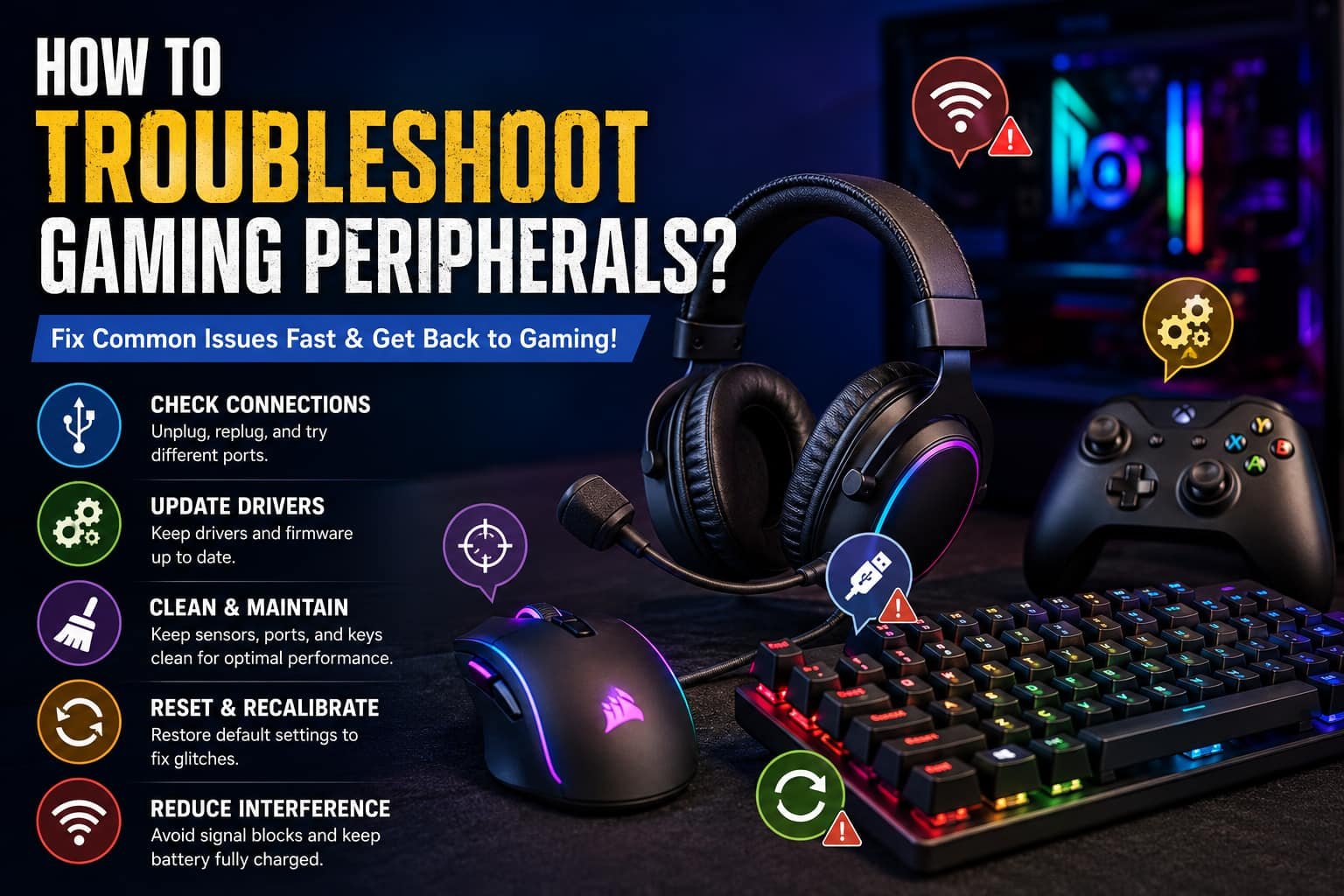
Gaming peripherals are supposed to make gaming smoother, faster, and more enjoyable. But in my experience, nothing ruins a gaming session faster than a gaming mouse that suddenly stops moving, a keyboard with input lag, or a controller that refuses to connect in the middle of a match.
I’ve personally dealt with everything from wireless gaming lag to headset audio issues and random USB disconnects. The good news is that most gaming peripheral problems are easier to fix than people think. In many cases, a simple driver update, quick reset, or USB port switch can solve the issue within minutes.
This guide will walk you through practical and beginner-friendly ways to troubleshoot gaming peripherals, including gaming mice, keyboards, controllers, and headsets. I’ll also cover common causes of lag, firmware issues, wireless connection problems, and the best software tools for diagnosing hardware issues.
How Can I Reset or Recalibrate My Gaming Peripherals?
One of the first troubleshooting methods I always try is resetting or recalibrating the device. A lot of gaming peripherals develop temporary glitches because of outdated settings, corrupted profiles, or failed firmware updates.
Resetting helps restore factory settings and clears many hidden software issues.
Gaming Keyboard or Mouse Not Working?
If your gaming keyboard or gaming mouse suddenly stops responding, try these simple steps:
Unplug and Reconnect the Device
Remove the USB cable or wireless dongle from the PC. Wait about 10 seconds before plugging it back in.
I’ve noticed this simple trick often forces Windows to reload the driver correctly.
Switch USB Ports
Sometimes the issue is not the peripheral itself but the USB port.
Try:
- Moving from a front USB port to a rear motherboard USB port
- Avoiding low-power USB hubs
- Using a direct connection instead of extension cables
Direct motherboard ports usually provide better stability and lower latency.
Use the Reset Button
Some gaming mice and keyboards include a physical reset hole or reset button.
Brands like:
- Logitech
- Razer
- Corsair
often provide factory reset options inside their software as well.
Restore Default Settings
Open software like:
- Logitech G Hub
- Razer Synapse
- Corsair iCUE
- SteelSeries Engine
Look for:
- Restore Defaults
- Reset Device
- Recalibrate Sensor
- Factory Reset
In my experience, corrupted DPI profiles or RGB settings can sometimes cause strange input problems.
Resetting a Gaming Controller
Xbox or PlayStation Controllers
For console controllers:
- Locate the reset button at the back
- Use a pin to hold it for 5–10 seconds
- Reconnect using USB or Bluetooth
This often fixes pairing issues and input lag.
Re-Pairing a PC Gamepad
For PC gaming controllers:
- Open Bluetooth & Devices settings
- Remove the controller
- Restart the PC
- Pair the controller again
I’ve fixed several Bluetooth connectivity issues this way, especially after Windows updates.
Recalibrating Mouse or Controller
If your mouse cursor drifts or your analog stick feels inaccurate, recalibration can help.
On Windows:
- Open Control Panel
- Go to Devices and Printers
- Right-click the controller
- Select Game Controller Settings
- Open Properties
- Choose Calibrate
This process improves:
- sensor accuracy
- response time
- controller precision
How Do I Fix a Gaming Mouse That Won’t Move or Click Properly?
A gaming mouse that freezes, double-clicks, or refuses to move can become incredibly frustrating during competitive gaming.
I once had a wireless mouse that kept disconnecting every few minutes, and surprisingly, the problem turned out to be dust blocking the sensor.
Here are the fixes that usually work.
Check the Physical Connection
For wired mice:
- Ensure the USB cable is fully connected
- Try another USB port
- Avoid damaged USB hubs
For wireless mice:
- Recharge the battery
- Replace old batteries
- Keep the dongle close to the mouse
Low battery power is one of the biggest causes of wireless gaming lag.
Clean the Mouse Sensor
Dust and dirt can interfere with tracking.
Use:
- compressed air
- microfiber cloth
- soft cotton swab
Focus especially on:
- optical sensor
- mouse feet
- side buttons
- scroll wheel
In my experience, cleaning the sensor fixes cursor skipping surprisingly often.
Update or Reinstall Drivers
Open:
- Windows Device Manager
Then:
- Find your mouse under “Mice and other pointing devices”
- Right-click the device
- Select “Update Driver”
If that fails:
- uninstall the driver
- restart the computer
- allow Windows to reinstall it automatically
Outdated drivers can cause:
- input lag
- disconnects
- polling rate instability
- DPI issues
Check for Double-Click Problems
Many gaming mice eventually develop accidental double-click issues.
Try:
- lowering debounce delay settings
- updating firmware
- cleaning mouse switches
If the problem continues, the internal switch may be worn out.
How Do I Update Drivers or Firmware for Gaming Peripherals?
Keeping drivers and firmware updated is one of the easiest ways to improve gaming peripheral performance.
Firmware updates often:
- fix bugs
- improve latency
- increase compatibility
- stabilize wireless connectivity
Use Manufacturer Software
Most gaming brands provide dedicated apps.
For example:
- Logitech G Hub
- Razer Synapse
- Corsair iCUE
- SteelSeries Engine
Inside these apps, check for:
- firmware updates
- driver updates
- recalibration tools
- sensor optimization
Update Drivers Through Windows
Using Windows Device Manager:
- Right-click the Start Menu
- Open Device Manager
- Find your peripheral
- Select “Update Driver”
I usually restart the PC after every major driver update to avoid conflicts.
Download Drivers from Official Websites
Sometimes Windows installs generic drivers that limit performance.
Downloading official drivers directly from:
- Logitech
- Razer
- SteelSeries
- Corsair
can unlock:
- advanced DPI settings
- RGB customization
- macro support
- polling rate controls
What Causes Lag or Delay in Wireless Gaming Accessories?
Wireless gaming accessories are convenient, but they can sometimes suffer from latency or connection instability.
I learned this the hard way while troubleshooting a gaming headset that kept stuttering because it was too close to a Wi-Fi router.
Here are the most common causes of wireless gaming lag.
Low Battery Power
Weak batteries reduce signal strength and responsiveness.
Bluetooth and Wi-Fi Interference
Nearby devices can interfere with:
- Bluetooth signals
- 2.4GHz wireless receivers
- wireless dongles
Long Distance from Receiver
Keep your gaming mouse or controller close to the receiver whenever possible.
USB Hub Issues
Cheap USB hubs may not provide enough power for gaming peripherals.
Direct motherboard USB ports generally work better.
Outdated Firmware
Old firmware versions often cause:
- packet loss
- disconnects
- latency spikes
- unstable polling rates
High CPU or RAM Usage
Heavy background applications can delay system response times.
Close:
- recording software
- browsers
- unnecessary startup programs
Power Saving Settings
Windows power management sometimes disables USB devices to save energy.
Disable:
- USB selective suspend
- aggressive power-saving settings
This helped me fix random controller disconnects on one of my PCs.
What Tools or Software Can Help Diagnose Gaming Peripheral Problems?
Using the right software makes troubleshooting much easier.
Manufacturer Software Tools
These tools help diagnose:
- sensor problems
- firmware issues
- RGB failures
- button mapping problems
Popular software includes:
- Logitech G Hub
- Razer Synapse
- Corsair iCUE
- SteelSeries Engine
Windows Troubleshooting Tools
Windows itself includes useful utilities.
Device Manager
Allows you to:
- update drivers
- reinstall devices
- identify hardware conflicts
Windows Troubleshooter
Automatically scans for:
- hardware issues
- connection problems
- driver conflicts
Online Testing Tools
I’ve also used online tools to quickly test hardware.
Useful tools include:
- keyboard tester websites
- mouse click checker tools
- gamepad testing utilities
These tools help identify:
- ghosting keyboards
- stuck keys
- faulty mouse buttons
- dead controller inputs
Conclusion
Learning how to troubleshoot gaming peripherals can save you a lot of frustration and money. In my experience, most issues come down to a few common causes like outdated drivers, weak wireless signals, USB connection problems, or incorrect settings.
Simple fixes like:
- reconnecting the device
- switching USB ports
- cleaning sensors
- updating firmware
- recalibrating controllers
can solve the majority of gaming peripheral issues in minutes.
The key is to troubleshoot step by step instead of assuming the hardware is broken immediately. Whether you use a gaming mouse, keyboard, headset, or controller, understanding these basic troubleshooting methods will help keep your setup running smoothly and improve your overall gaming experience.
FAQ’s
1. How do I fix a non-responsive mouse scroll wheel?
Clean the scroll wheel carefully, update the mouse driver, restart the PC, and test the mouse on another computer. Dust buildup is often the main issue.
2. Why does my gaming keyboard have input lag?
Keyboard latency can happen because of outdated drivers, low polling rates, USB hub issues, or high CPU usage in the background.
3. Can outdated drivers cause gaming peripheral issues?
Yes. Old drivers can lead to:
- disconnects
- input lag
- Bluetooth issues
- sensor instability
- compatibility problems
Regular updates improve both stability and performance.
4. Why do gaming peripherals stop working with USB hubs?
Some USB hubs cannot provide enough power for gaming accessories, especially RGB keyboards or wireless receivers. Direct motherboard USB ports are more reliable.
5. Why is sound only coming from one side of my gaming headset?
Check:
- cable damage
- audio balance settings
- loose headphone jack
- driver issues
Testing the headset on another device can help identify whether the problem is hardware-related.


 Mark Jones